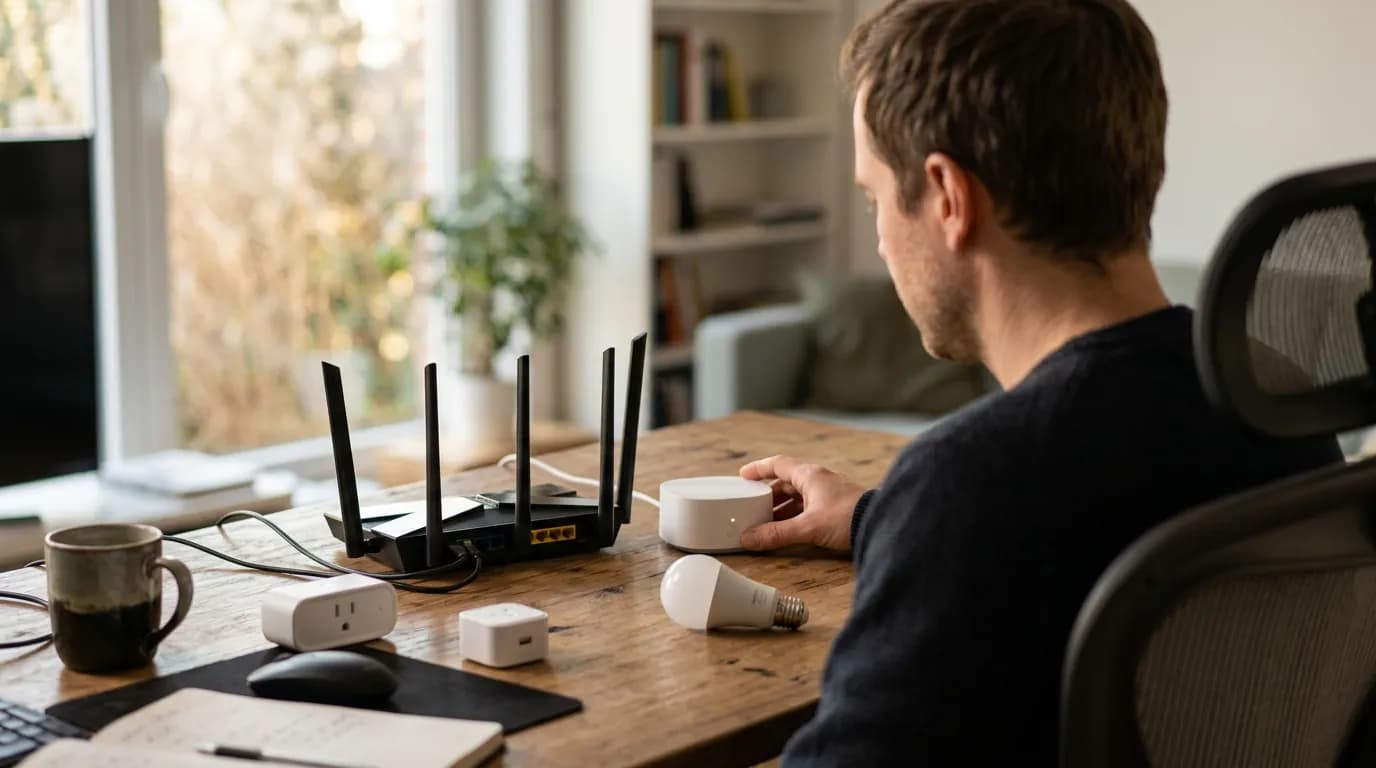
A network technician will check your router's 2.4 GHz channel before anything else, and there's a reason for that. Smart home disconnection problems look random but almost always trace back to a handful of fixable causes, and the most common one isn't your device at all.
Smart home devices that keep going offline typically involve three converging variables: radio frequency congestion, router firmware behavior, and the communication protocol the device actually uses. That last one matters more than most troubleshooting guides acknowledge, because a Zigbee bulb and a Wi-Fi plug fail for completely different reasons even if the symptom looks identical.
This article is for people who've already restarted their router, re-paired the device, and still ended up back at square one. It won't cover cloud outages or manufacturer app bugs, since those are outside your control and a different problem entirely. Here's the tension worth sitting with before you start swapping settings: the same router configuration that makes your streaming TV rock-solid can be quietly hostile to smart home devices. That conflict sits at the heart of why standard router advice fails here.
Why Smart Home Devices Disconnect: The Real Causes
The failure-before-success framing is worth applying here. Knowing what's actually breaking down makes the fix stick.
Wi-Fi-based smart devices (plugs, cameras, locks that use your home network directly) are particularly sensitive to two things: IP address conflicts and 2.4 GHz channel saturation. Your router assigns IP addresses dynamically through DHCP. If a device goes offline briefly and comes back while another device has claimed its address, the returning device can't reconnect cleanly. That's not a hardware failure. It's a configuration gap.
The 2.4 GHz band is a genuinely crowded space. Neighboring routers, baby monitors, and microwave ovens all compete on the same narrow slice of spectrum. Smart home devices, which transmit small data packets infrequently, lose that competition to bandwidth-hungry devices every time. The 5 GHz band avoids most of that congestion but has shorter range, which is why many budget smart devices ship with 2.4 GHz radios only. Or rather: they're not simply cheaper radios. They're tuned for longer range through walls, which is the right trade-off for a light switch across the house but creates a crowding problem you have to manage deliberately.
Zigbee and Z-Wave devices work differently. They don't connect to your router at all. They connect to a hub (a SmartThings hub, a Philips Hue Bridge, an Aeotec gateway) and form their own mesh network. When a Zigbee device goes offline, your Wi-Fi is almost never the culprit. The issue is usually hub distance, mesh gaps from removed devices, or interference from your own 2.4 GHz Wi-Fi on overlapping channels. Zigbee operates at 2.4 GHz too, and channels 11, 15, 20, and 25 in Zigbee overlap with Wi-Fi channels 1, 6, and 11. Running both on the same frequencies is a pain, and it's also completely avoidable.
Thread-based devices (some newer Matter-compatible hardware) add a third model: they form a border-router mesh through devices like HomePod mini or a Google Nest Hub. Thread disconnections usually mean the border router lost its connection or the mesh has too few nodes. That's a category of problem most basic router resets will never fix.
Diagnosing Which Problem You Actually Have
Before changing anything, figure out which failure mode applies. Changing settings blindly is how you create new problems.
Check whether the disconnection is protocol-specific or affects everything. If only your Wi-Fi smart devices drop while your Zigbee lights stay on, the problem is in your router or network configuration. If your Zigbee devices drop but Wi-Fi devices stay connected, the hub or mesh is the issue. If everything drops together, your router or ISP connection is the common point of failure.
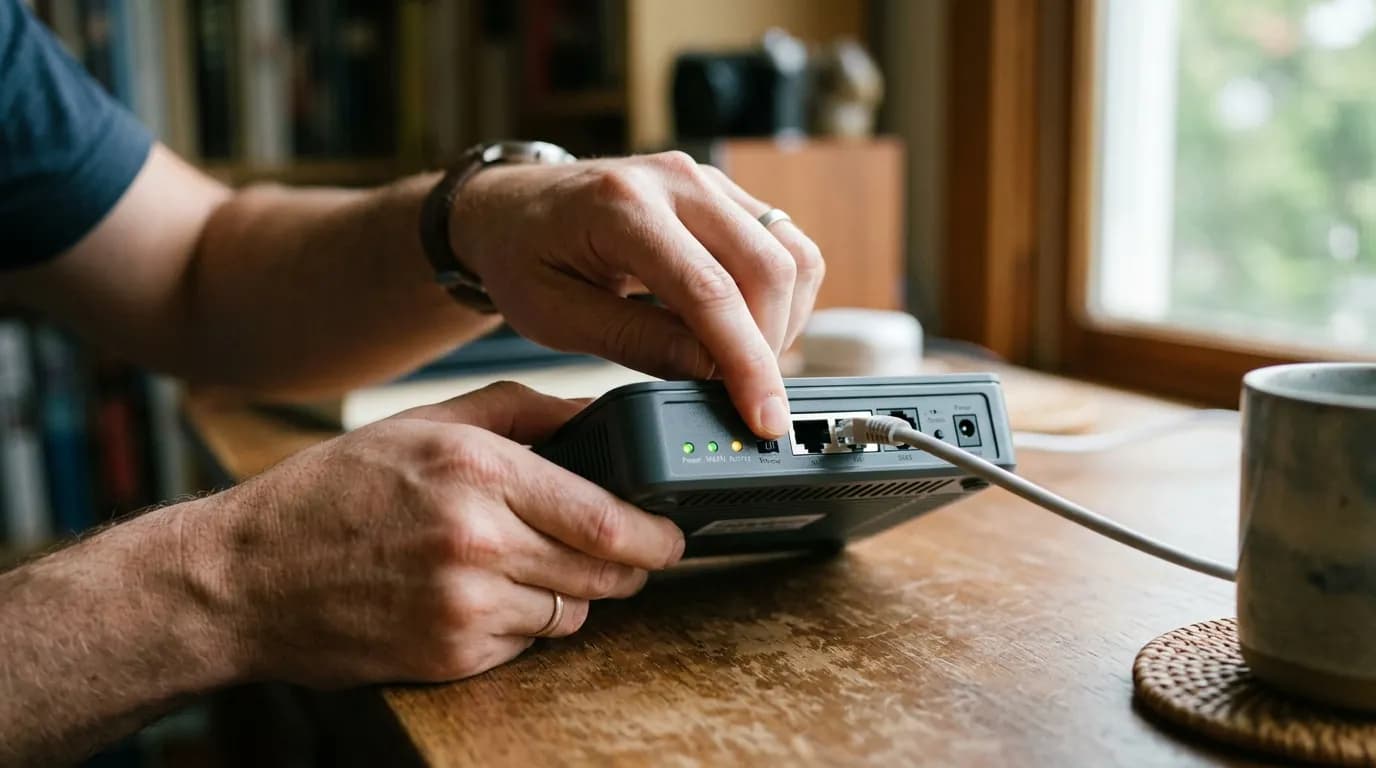
For Wi-Fi devices, open your router's admin interface (typically 192.168.1.1 or 192.168.0.1 for most US home routers) and look at two things: your DHCP lease table and your 2.4 GHz channel assignment. If you see duplicate IPs or a very short DHCP lease time (under 24 hours is common on default settings), that's your first target. Assign static IPs (or DHCP reservations, which is the cleaner approach) to devices that disconnect repeatedly.
The most common mistake I see is people upgrading to a Wi-Fi 6 router and assuming their smart home problems will disappear. Wi-Fi 6 is a significant upgrade for phones and laptops. For a $15 smart plug running 802.11b/g/n, the router's protocol generation doesn't matter. What matters is whether band steering is pushing that plug toward 5 GHz, where its radio can barely reach. Disable band steering, or better yet, create a dedicated 2.4 GHz SSID (network name) just for smart home devices. That's a five-minute change that solves hours of chasing phantom disconnections.
That framing misses something. The dedicated SSID isn't just about keeping devices on 2.4 GHz. It also lets you set that network's DHCP pool to issue longer leases, apply different QoS rules, and isolate smart home traffic from your main network as a basic security measure. You're building a stable, predictable radio environment for devices that can't adapt to noise the way a laptop can.
Fixing Wi-Fi Smart Home Disconnections
Work through these in order. Most people solve their problem at step two or three.
First, set DHCP reservations for every smart home device. In your router admin panel, find each device by MAC address in the connected-devices list, then assign it a permanent IP. This takes about ten minutes total and eliminates the address-conflict failure mode completely. Your router's interface will vary by brand (Eero, Netgear, TP-Link, and Asus all label this differently), but every consumer router sold in the US supports it.
Second, fix your 2.4 GHz channel. Use a free Wi-Fi analyzer app (WiFi Analyzer on Android, or the Wireless Diagnostics tool built into macOS) to see which channels your neighbors are using. Set your router to channels 1, 6, or 11 (the only non-overlapping channels in the 2.4 GHz band) and pick whichever one is least congested in your environment. Auto-channel selection sounds smart but often parks your router on the same channel as three neighbors.
Third, check your router's 802.11 mode settings. Some routers default to enabling only newer protocols on the 2.4 GHz band to improve overall performance. If yours is set to 802.11n-only or 802.11ax-only, older smart devices using 802.11b or g may be silently rejected or forced to reconnect repeatedly. Set it to mixed mode (b/g/n) on the 2.4 GHz band.
If you're running a mesh Wi-Fi system like Eero, Google Nest, or Orbi, confirm that roaming aggressiveness isn't the culprit. Mesh systems sometimes hand off devices between nodes before the device has cleanly disconnected from the previous node, creating a brief dropout that looks like a hardware failure. Lowering roaming aggressiveness in the mesh app often solves this for stationary smart devices.
Fixing Zigbee, Z-Wave, and Thread Disconnections
Protocol-specific mesh problems need protocol-specific fixes. Applying Wi-Fi solutions here wastes time.
For Zigbee networks, the mesh depends on mains-powered devices acting as routers. Battery-powered devices (sensors, buttons) are end nodes and can't relay signals. If you remove a mains-powered Zigbee bulb or plug that was relaying for a distant sensor, that sensor loses its path to the hub. Re-add a mains-powered device between the hub and the dropped sensor, or move the hub closer. A Zigbee network with only battery-powered devices beyond about 30 feet from the hub is going to be unreliable.
The channel overlap issue mentioned earlier is fixable: in most Zigbee hubs, you can change the Zigbee channel in the settings. Zigbee channel 25 (2.475 GHz) has the least overlap with Wi-Fi channels 1, 6, and 11. If your hub allows it, move there. Philips Hue Bridge and SmartThings both expose this setting, though it requires re-pairing your devices afterward. That's a real cost, but persistent interference is worse.
Z-Wave operates at 908.42 MHz in the US, which means it doesn't share spectrum with Wi-Fi or Zigbee at all. Z-Wave disconnections almost always mean signal range issues, an overloaded controller, or a device that's failed and is sending corrupt packets that destabilize the mesh. Remove recently-added devices one at a time to isolate the bad actor.
Thread is the newest protocol here, and it's worth being direct about its current state: the ecosystem is still maturing. If your Thread devices (often Matter-over-Thread products) are dropping, check that your border router device has a stable connection, confirm it's running current firmware, and verify you have at least two Thread-capable devices to form a minimum viable mesh. Running Thread with a single border router is asking for single-point-of-failure outages.
When the Real Problem Is Your Router (and What to Replace It With)
Some routers handle smart home traffic poorly by design. Consumer ISP-provided routers are the most common offender.
ISP-supplied routers (the box your cable or fiber provider gave you) are optimized for throughput benchmarks, not for managing dozens of low-bandwidth persistent connections. They often have aggressive idle-connection timeouts that drop devices that haven't sent data recently. Smart home devices that poll infrequently (a door sensor that only transmits when opened) are exactly the kind of traffic that gets pruned. You can sometimes adjust this in the router's advanced settings, but ISP routers vary wildly in what they expose to the user.
If you're running more than about 20 smart home devices on an ISP-supplied router and experiencing chronic disconnections, replacing it with a consumer router that offers better connection-state management is worth considering. Routers with OpenWrt support, or higher-end models from Asus, TP-Link's Archer line, and Netgear's Nighthawk series, give you significantly more control over DHCP, keep-alive intervals, and client management. A dedicated smart home hub (SmartThings, Home Assistant on a local server) combined with a capable router offloads most of the connection-state complexity away from your Wi-Fi network entirely.
The reader who shouldn't follow the router-replacement path is the one with fewer than ten smart devices and a recent router (purchased in the last three years). For you, the issue is almost certainly configuration, not hardware. Spending $150 on a new router before fixing DHCP reservations and channel settings is genuinely a waste of money.
What Happens If You Don't Fix This
Ignoring persistent smart home disconnections isn't just annoying. It has specific downstream effects worth naming.
Devices that repeatedly disconnect and reconnect stress your router's connection table. On entry-level routers, this can degrade performance for all connected devices, not just the smart home ones. A router handling 30 smart devices in a constant state of reconnection is doing real work that crowds out your laptop and phone.
Automations break silently. A smart lock that's offline doesn't tell you it's offline. An automation that was supposed to lock the door at 10 PM logs as executed even if the device wasn't reachable. If your security posture depends on smart locks or cameras that live on an unstable network, you're carrying risk you may not have accounted for.
And the compounding problem: every time a device reconnects, it may pull a new IP if you haven't set DHCP reservations, which can break integrations, HomeKit rooms, or Alexa group assignments that reference that device by IP. What starts as one dropping plug quietly corrupts your whole home automation configuration over weeks. Fix the network layer first. Everything else builds on it.
Getting Your Smart Home Network Stable
If your devices are dropping on Wi-Fi, start here: set DHCP reservations, fix your 2.4 GHz channel assignment (channels 1, 6, or 11 only), and create a dedicated 2.4 GHz SSID. Check those three before buying anything.
If Zigbee or Z-Wave devices are dropping, the router is the wrong place to look. Identify mesh gaps, check channel overlap for Zigbee, and remove recently-added devices to isolate bad actors in Z-Wave networks.
Thread drops usually mean a border router issue or an undersized mesh. Two or more Thread-capable devices plus a stable border router is the minimum viable setup.
I'd start with DHCP reservations regardless of which protocol is giving you trouble. It's the lowest-effort, highest-payoff change in the entire troubleshooting sequence, and it eliminates one failure mode permanently. Everything else you try will be cleaner once IP conflicts are off the table.